Automated Payment Card Reports
Last updated July 7, 2026
CostPocket matches company card transactions with submitted expense documents automatically, so card reconciliation stops being manual work. This guide covers activating the feature, importing transactions, and preparing a card report.
Step 1. Activate payment card reports
Go to Settings > Other services > Automated payment card reports and enable the feature. You can add more payment cards later under Settings > Accounting configuration > Payment methods.
Step 2. Import card transactions
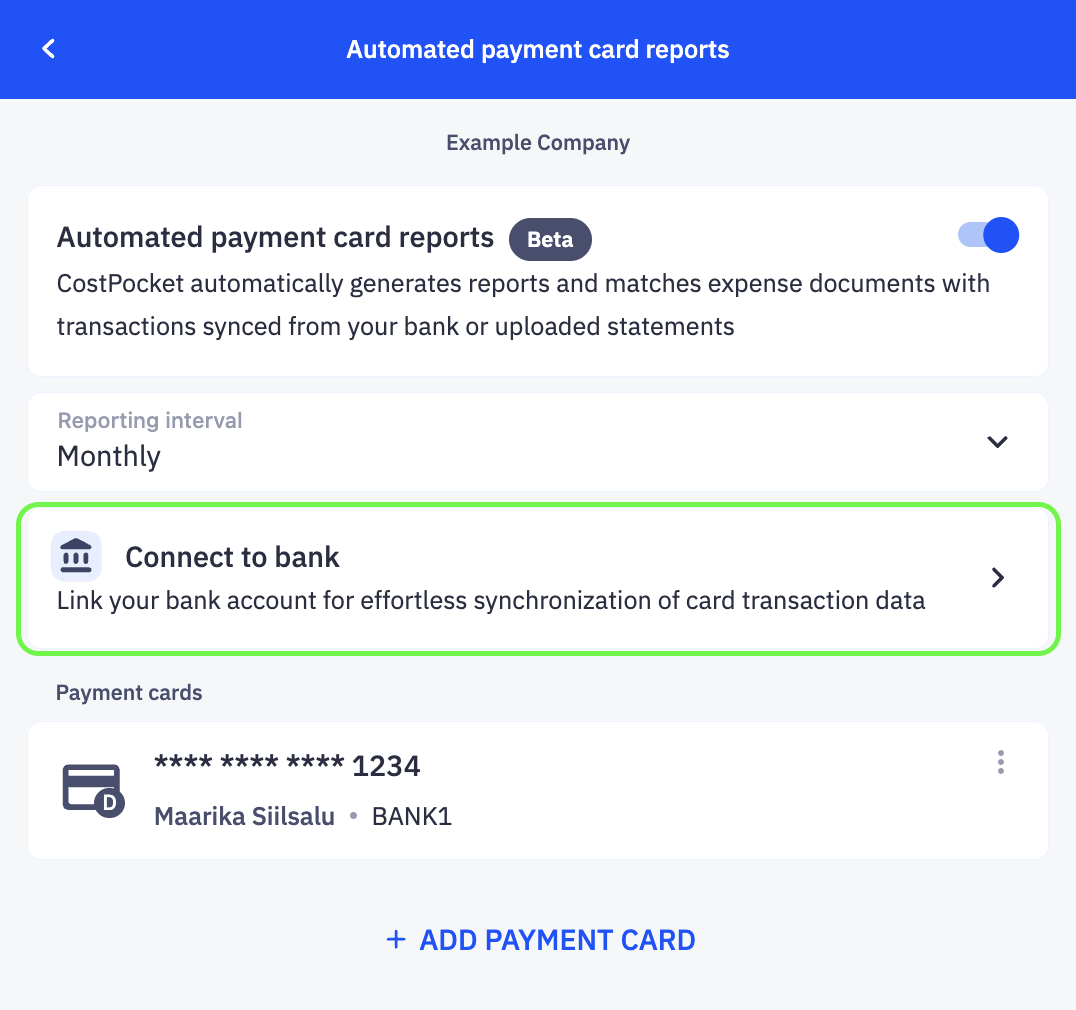
Option 1: connect your bank account (recommended)
CostPocket supports secure bank connections through Swedbank and EnableBanking:
- Go to Settings > Other services > Bank integration.
- Choose your bank account type.
- Select your bank from the list.
- Log in and authorise data access.
- Mark the account(s) to import from.
- Confirm permission for CostPocket to sync transactions.
Once connected, transactions are imported automatically on a regular basis. The full transaction list is visible in Cloud.
Option 2: import account statement files
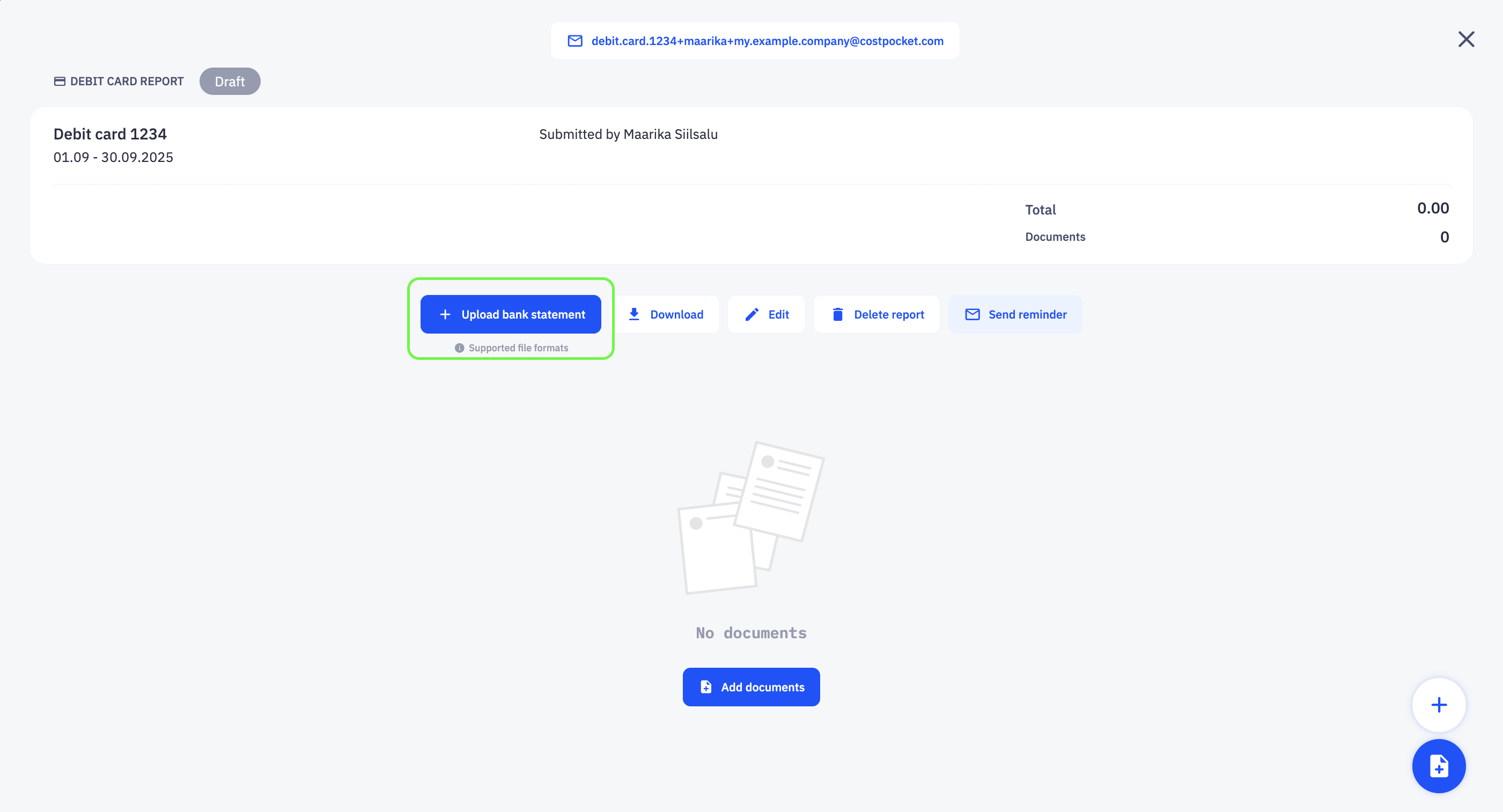
Prefer manual control? Download transactions from your bank as XML, CSV, or PDF, then upload the file directly to a card report or in the card transactions view.
Step 3. Use the feature month to month
During the month: cardholders select the correct payment method when submitting expenses, which links each document to the right card.
At review time: open the payment card report to
- identify transactions with missing documents,
- mark missing documents as lost, and
- manually match any unmatched transactions with documents.
After you review and confirm, the complete report with all attached documents is sent to your accounting software automatically.
Frequently asked questions
Which banks can I connect? CostPocket connects through Swedbank and EnableBanking, which covers a wide range of European banks. If yours isn't supported, statement file import (XML, CSV, PDF) works with any bank.
What happens to transactions without a receipt? The report highlights them so the cardholder can add the document or mark it as lost — nothing slips through unnoticed.