DIGI tutorial for Postman
Last updated July 15, 2026
Postman is a quick way to test DIGI requests before integrating.
Step 1: Login to DIGI
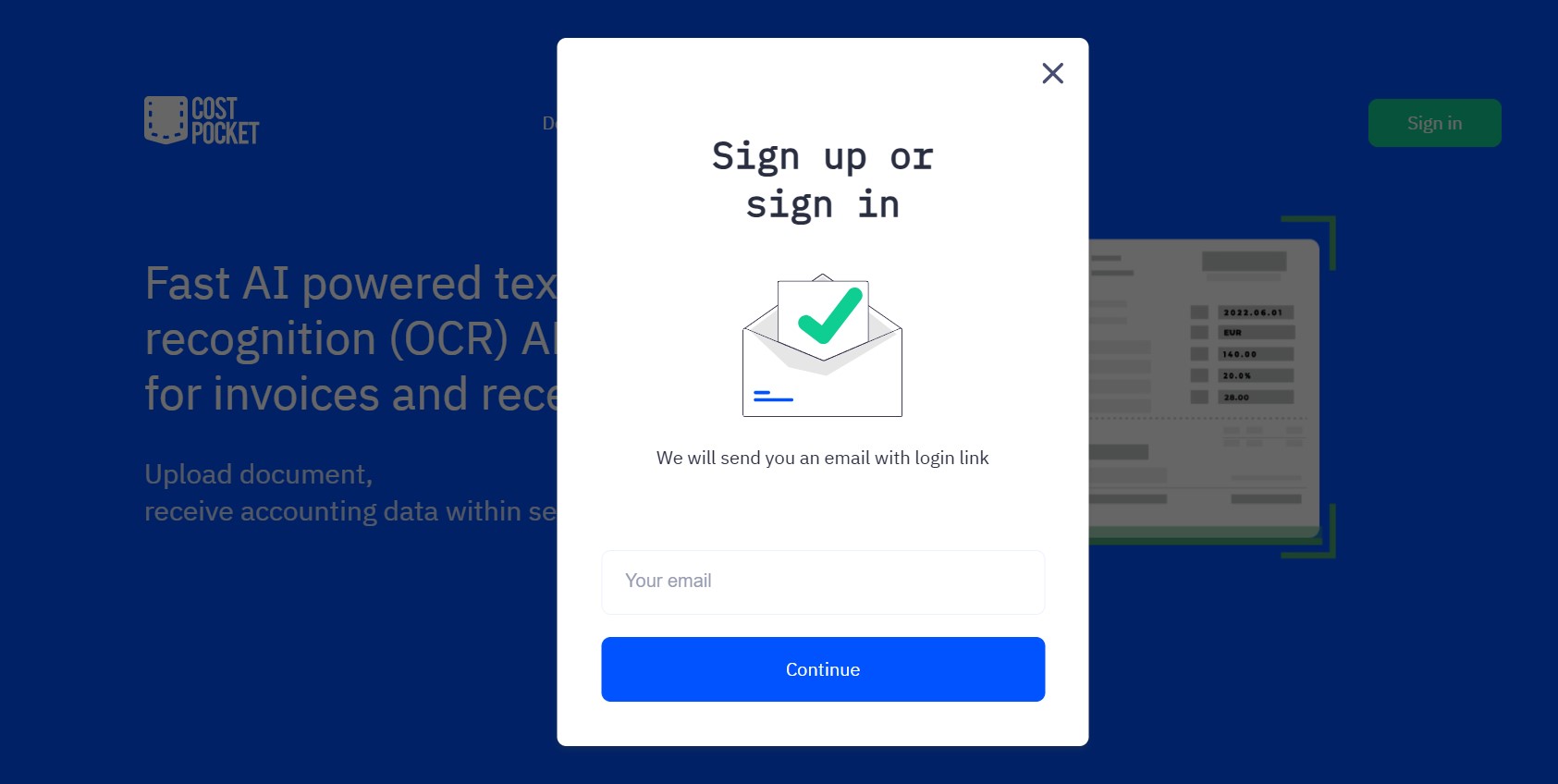
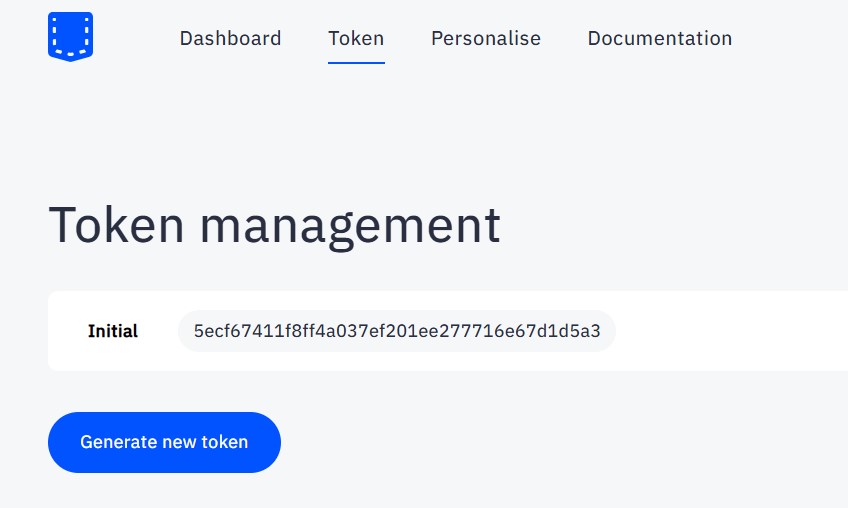
Log in or register at digi.costpocket.com, enter the single-use email code, and copy your token from the DIGI Portal.
Step 2 - Create request in Postman
In Postman, create a new request:
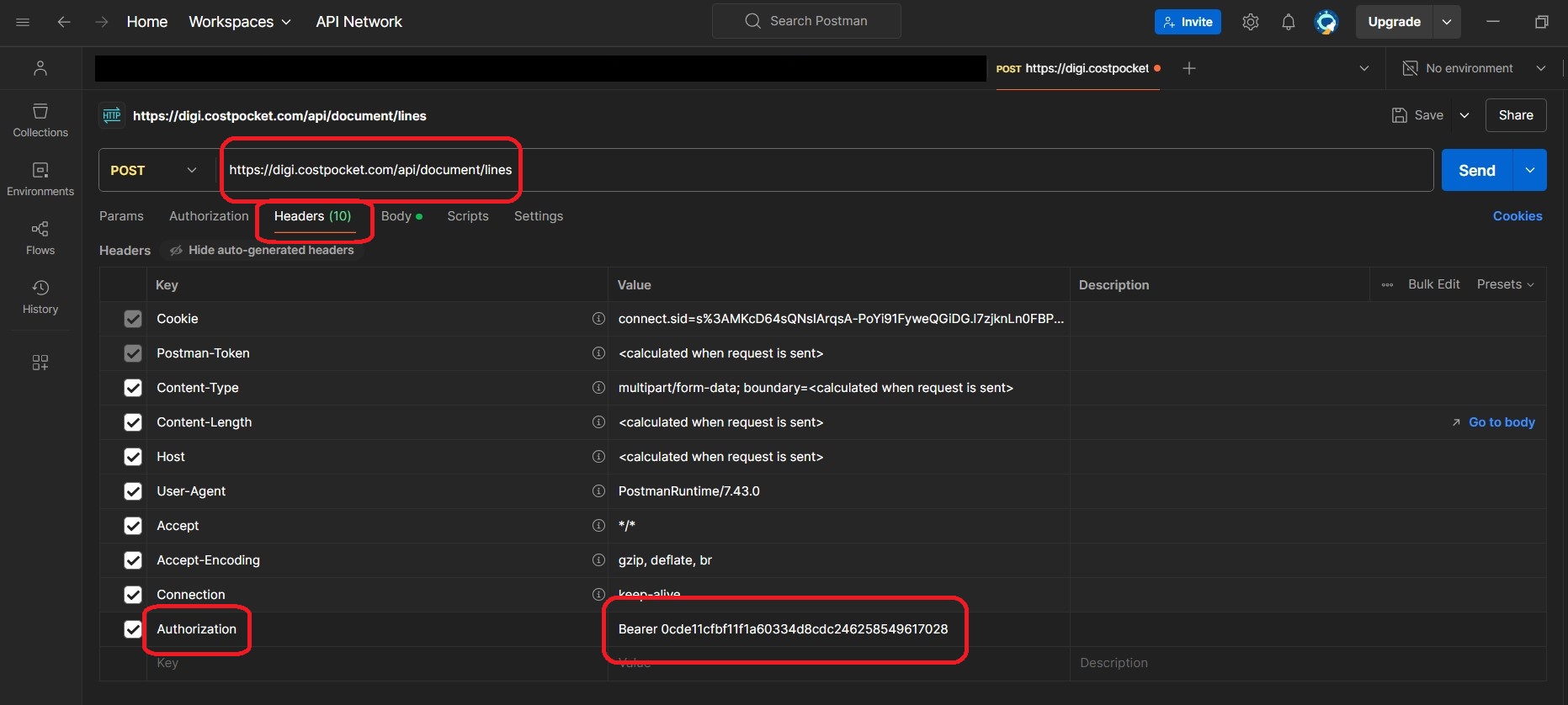
- Set the API endpoint URL from the documentation.
- In Headers, add key Authorization with value Bearer your-token-here.
Step 3 - Configuration in Postman
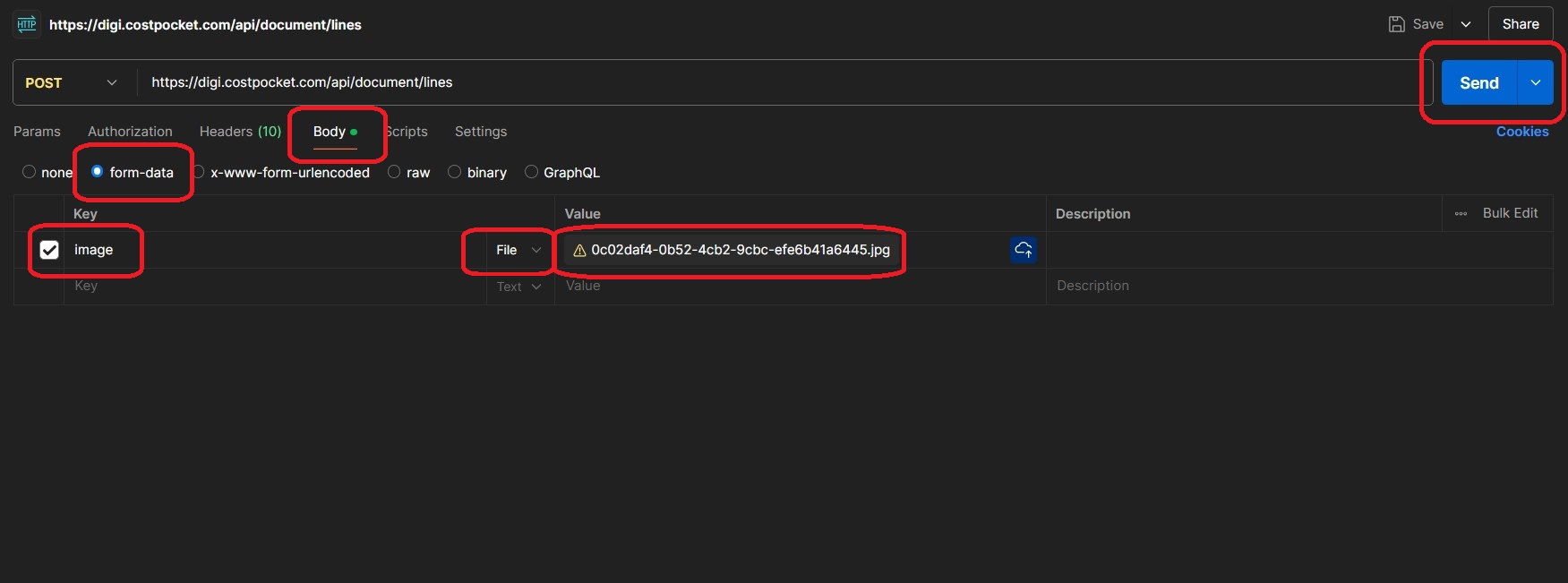
- Go to "Body"
- Choose "form-type" as payload type
- Choose "file" as input type
- Enter key "image"
- Upload your image as value
- Click "Send". Wait a few seconds and see your result!
All done!
After this, make more requests, test the service in some other environment or integrate into your code (see more tutorials below)!