How to manage expense types
Last updated July 7, 2026
Expense types let employees categorise documents as they submit them, so expenses arrive in accounting pre-sorted. Setup takes two steps.
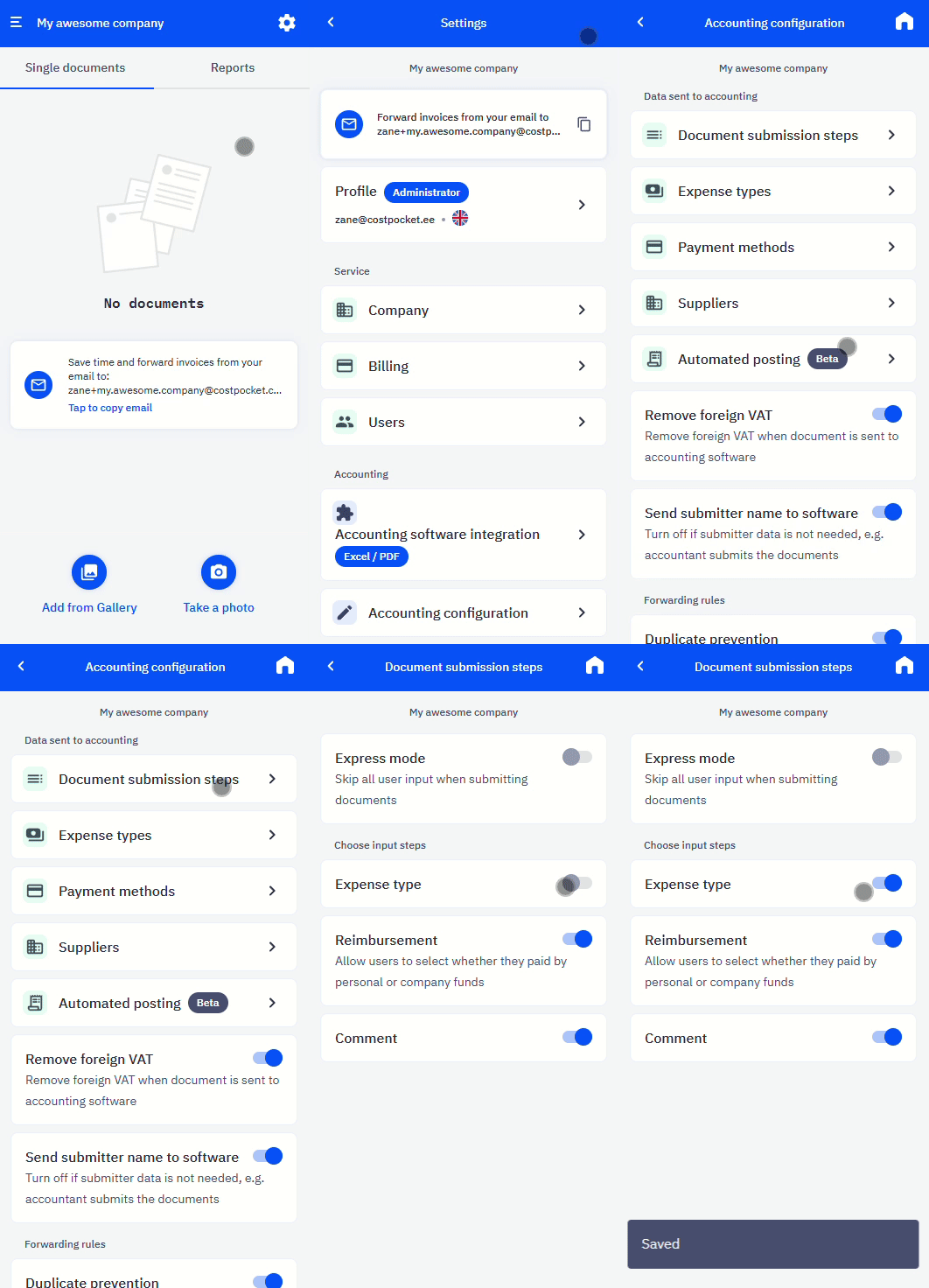
Step 1. Enable the expense type step
Go to Settings > Accounting configuration > Document submission steps and turn on the Expense type step.
Step 2. Add and edit expense types
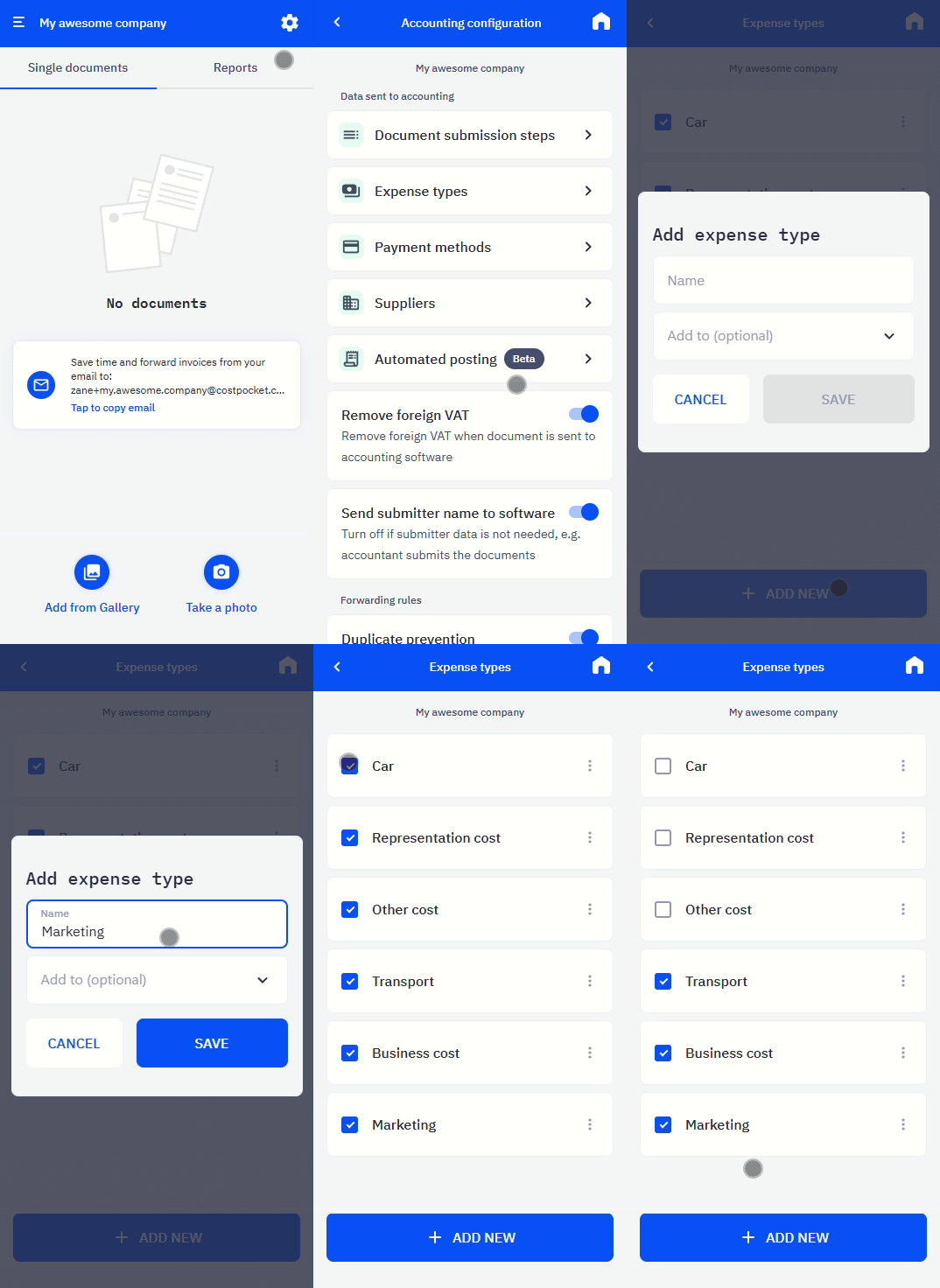
Go to Settings > Accounting configuration > Expense types and click + ADD NEW.
- Untick any expense type to hide it from the submission options.
- Add subcategories for more detailed reporting.
Frequently asked questions
Should expense types match my chart of accounts? That's the most useful approach — accountants can then map each type directly to an account, and with automated posting the mapping happens automatically.
Can employees pick the wrong type? They can, which is why administrators and accountants can review and correct documents before or after forwarding, depending on your workflow.